
 Français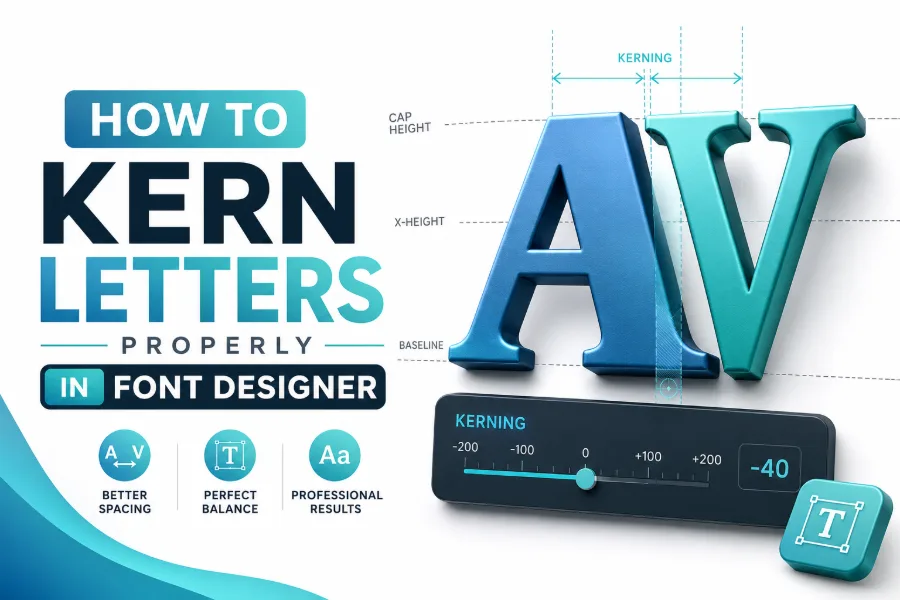
How to kern letters properly in font designer starts with learning how letters look beside each other, not just how much space sits between them.
Kerning is the careful adjustment of the spacing between specific letter pairs so that words feel balanced, readable, and professional. When you design or refine a font, your goal is not to achieve equal mathematical spacing, because letters have different shapes, angles, curves, and open areas.
You need visual balance, especially in headlines, logos, brand names, app labels, and display typography. This guide shows you how to train your eye, spot awkward pairs, use spacing groups, and make practical kerning decisions without overworking every letter.
Why Kerning Matters In Font Design
Kerning matters because people judge typography before they consciously read it, and uneven spacing can make a strong font feel unfinished. In font design, one poor pair can damage the rhythm of an entire word, especially when letters like A, V, W, Y, T, o, r, and f appear together. You should think of kerning as the final layer of polish that helps your typeface feel deliberate instead of accidental.
A font tool can help you preview styles quickly, but kerning requires slower judgment when you are shaping a complete type system. You can test decorative ideas by creating stylish fonts in seconds, then return to your font designer and study whether the letter spacing still feels readable. This keeps creativity useful because a stylish font only works when the spacing supports the message.
Good kerning also improves trust. If your letters collide, drift apart, or create strange holes inside words, readers may not know the technical problem, but they will sense that something is wrong. That is why professional designers check kerning carefully before exporting a font, building a logo, or publishing a design system.
How To Kern Letters Properly In Font Designer
How to kern letters properly in font designer means working from broad spacing to narrow pair correction. Start with side bearings before touching kerning pairs because the default left and right spacing of each glyph controls the basic rhythm of the font. If side bearings are weak, you will waste time fixing hundreds of pairs that should have been solved by better base spacing.
Use control words to test rhythm. Common examples include words with repeated straight letters, rounded letters, and mixed shapes, because these reveal whether your font breathes evenly. You can type strings such as “minimum,” “nono,” “HHOHH,” “AVATAR,” and “Typography” to see how stems, bowls, diagonals, and counters interact.
After that, adjust kerning only where a pair looks wrong. Avoid the beginner mistake of editing every pair because over-kerning creates inconsistent results and makes the font harder to maintain. Your best work comes from fixing visible problems while preserving the natural rhythm of the typeface.
Understand Spacing Before Kerning
Spacing and kerning are related, but they are not the same task. Spacing sets the general distance around each glyph, while kerning corrects awkward relationships between specific pairs. If your font has poor spacing, kerning becomes a patchwork job instead of a clean finishing step.
Think about letter shapes in groups. Straight letters like H, I, N, and M often need more predictable side spacing, while round letters like O, C, G, and Q often need optical adjustment because their curves create extra white space. Diagonal letters like A, V, W, and Y usually need the most attention because their shapes leave uneven gaps beside other characters.
Decorative fonts make spacing judgment even more important. A themed tool like mean girls font generator shows how personality-driven lettering can feel playful, but your own font still needs stable spacing so the style does not weaken readability. Use that idea as a reminder that mood and function must work together.
Train Your Eye To See Optical Space
Optical spacing is the space your eye perceives, not the space your ruler measures. Two gaps can have the same numeric width and still look different because curves, diagonals, and open counters change how white space appears. This is why kerning is a visual decision supported by tools, not a tool decision based on guesswork.
A useful habit is to blur your eyes slightly or zoom out from the word. When you stop focusing on individual outlines, the uneven gaps become easier to notice. You can also flip the word upside down, which removes the distraction of reading and lets you judge the spacing as shapes.
Some fonts use dramatic visual effects, but the same optical rule still applies. A resource like smoke font generator shows how soft, atmospheric lettering can create visual movement, yet readable spacing still depends on controlled gaps between forms. In your font designer, you should ask whether the effect helps the word or hides a spacing problem.
Start With Difficult Letter Pairs
Some pairs cause problems in almost every typeface. A and V often create a large visual gap because both shapes angle away from each other, while T and o can feel too open because the top bar of T leaves space above the round letter. Pairs like Yo, Wa, Ta, Ly, Fo, Tr, and VA also deserve close attention.
Do not fix these pairs in isolation only. Type them inside real words because surrounding letters can change how the pair feels. For example, “AV” may look acceptable alone, but “AVATAR” may show that the opening space pulls too much attention.
You should also test uppercase, lowercase, punctuation, and numbers. A font may look clean in title case but fail when used for prices, initials, acronyms, dates, or interface labels. Proper kerning protects the font across real design situations, not just attractive sample words.
Use Kerning Groups To Work Faster
Kerning groups help you avoid repeating the same adjustment hundreds of times. Instead of treating every glyph as completely separate, you group letters with similar left or right shapes. For example, H, I, M, N, and sometimes U may share related spacing behavior, while O, Q, C, and G may share rounded behavior.
Groups save time, but you should not trust them blindly. Some letters look similar from one side but behave differently because of crossbars, terminals, bowls, or decorative details. Always inspect important exceptions after applying group-based kerning.
This method is especially useful when building a full font with uppercase, lowercase, numerals, and punctuation. It helps you keep spacing consistent while reducing manual work. The key is to use groups as a structure, then refine the pairs that still look visually wrong.
Check Kerning At Real Sizes
Kerning can change visually when the font size changes. A pair that looks perfect at 120 pixels may feel tight at 14 pixels, and a pair that looks readable on screen may feel different when printed. That is why you need to test your font at the sizes where people will actually use it.
Display fonts need more careful kerning because large letters expose every awkward gap. Body fonts need consistent rhythm because readers will see long passages instead of isolated words. If your font serves both purposes, test it in headlines, subheadings, buttons, captions, and short paragraphs.
Do not rely on one preview window. Export samples, view them in a browser, place them in a mockup, and print a page when possible. Real-world testing reveals spacing issues that stay hidden inside your font editor.
Use A Simple Kerning Workflow
A clear workflow keeps your kerning decisions consistent. First, finish the main glyph shapes, because changing outlines later can ruin spacing work. Then set side bearings, test spacing strings, create kerning groups, and finally adjust the difficult pairs.
A practical workflow can look like this:
- Finish the glyph outlines before serious kerning.
- Set side bearings for straight, round, and diagonal forms.
- Test common words, brand-style words, numbers, and punctuation.
- Apply kerning groups where shapes behave similarly.
- Manually correct awkward pairs and export test samples.
This process prevents random editing. You move from large structure to small detail, which is the same way strong typography is usually built. When you follow this order, your kerning feels cleaner because every adjustment has a reason.
Avoid Over-Kerning Your Letters
Over-kerning happens when you keep adjusting pairs after they already look natural. The result can feel nervous, uneven, or too tight, especially in words with many diagonals and curves. Good kerning should disappear when someone reads the word.
A helpful test is to step away from the design and return later. If the spacing no longer distracts you, the pair may already be good enough. If one gap keeps pulling your eye away from the word, it needs more work.
You should also avoid chasing perfection in pairs that rarely appear. Focus first on common combinations, language-specific patterns, and the use cases your font is designed for. A logo font, a script font, and a text font do not need the same kerning priorities.
Compare Kerning, Tracking, And Leading
Kerning adjusts the space between specific letter pairs. Tracking changes the overall spacing across a word, line, or block of text. Leading controls vertical space between lines, which affects how comfortably readers move from one line to the next.
These three settings often work together, but they should not replace one another. If a word has one awkward gap, use kerning instead of changing tracking across the entire word. If the entire word feels too loose or too tight, adjust tracking before fixing individual pairs.
Leading matters when you test your font in paragraphs. A well-kerned font can still look hard to read if the line spacing is cramped. Good typography comes from the combined rhythm of letters, words, and lines.
Test Words Instead Of Single Pairs Only
Single-pair testing is useful, but words reveal real rhythm. When you kern only “AV,” you may miss how that pair behaves inside “WAVE,” “SAVVY,” or “AVAILABLE.” Context helps you see whether the adjustment supports the whole word.
Build a test list with common words, unusual words, names, numbers, and punctuation. Include short words because spacing errors are easier to see when there are fewer letters. Also include long words because repeated spacing problems become obvious across a full rhythm.
For a USA audience, test words that appear in branding, retail, apps, menus, packaging, and signage. Words like “SALE,” “VALUE,” “TAX,” “PAY,” “ONLINE,” “TOTAL,” and “ACCOUNT” can reveal practical spacing issues. This makes your font more useful outside the design screen.
Watch Punctuation And Numbers
Punctuation can make a font look unpolished if you ignore it. Commas, periods, quotation marks, apostrophes, hyphens, dollar signs, and parentheses all need spacing attention. These characters often sit beside letters and numbers in real text, so they affect readability more than beginners expect.
Numbers also deserve careful review. A price like “$19.99” should feel balanced, and a date like “10/12/2026” should not look crowded or uneven. If your font will be used for products, dashboards, captions, or social graphics, numeric kerning becomes especially important.
Check punctuation with both uppercase and lowercase text. A quote mark near a capital T may need different attention from a quote mark near a lowercase o. Small characters can create big visual distractions when the spacing is neglected.
Conclusion
how to kern letters properly in font designer is not about forcing identical gaps between every letter; it is about creating balanced, readable, and natural spacing that supports the design. Start with strong glyph shapes, set clean side bearings, use kerning groups, and then refine the letter pairs that still look visually uneven.
Pay special attention to diagonals, rounded letters, punctuation, numbers, and real-word testing because those areas reveal the most common spacing problems. When you kern with patience, your font becomes easier to read and more professional in logos, headlines, interfaces, and printed layouts. The best kerning does not call attention to itself. It simply makes every word feel clear, confident, and finished.